How to Redact a PDF (and Check the Text Is Really Gone)
6 October 2026
Redact PDF: free, in your browser Black out names and numbers in a PDF for real: redacted pages are rebuilt so nothing is left underneath.To redact a PDF, use a tool that deletes the text under each black box, not one that just draws a box on top. Adobe Acrobat Pro’s Redact tool, Preview’s Redact tool on a Mac and our free Redact PDF page all do this. Then check: select all, copy and paste. If the hidden words come back, it isn’t redacted.
That last step matters more than it sounds. A PDF stores its text and its drawings as separate layers, so a black rectangle can sit on top of a name while the name is still in the file, ready to be selected, copied, searched or read aloud by a screen reader.
Try it. The page below has three values under black boxes. Press copy, or drag across a box yourself, then switch to real redaction and try again.
Re: Settlement for claimant
Claimant: Jane Q. Example
SSN: 123-45-6789
Account: 4111 1111 1111 1111
The parties agree to the terms set out below.
What you’d paste
We tested six ways to black out a PDF
We made a one-page letter with a name, a (fake) Social Security number and a test card number, then hid those three lines six different ways. For each result we extracted the text, which is what happens when someone selects it and presses copy.
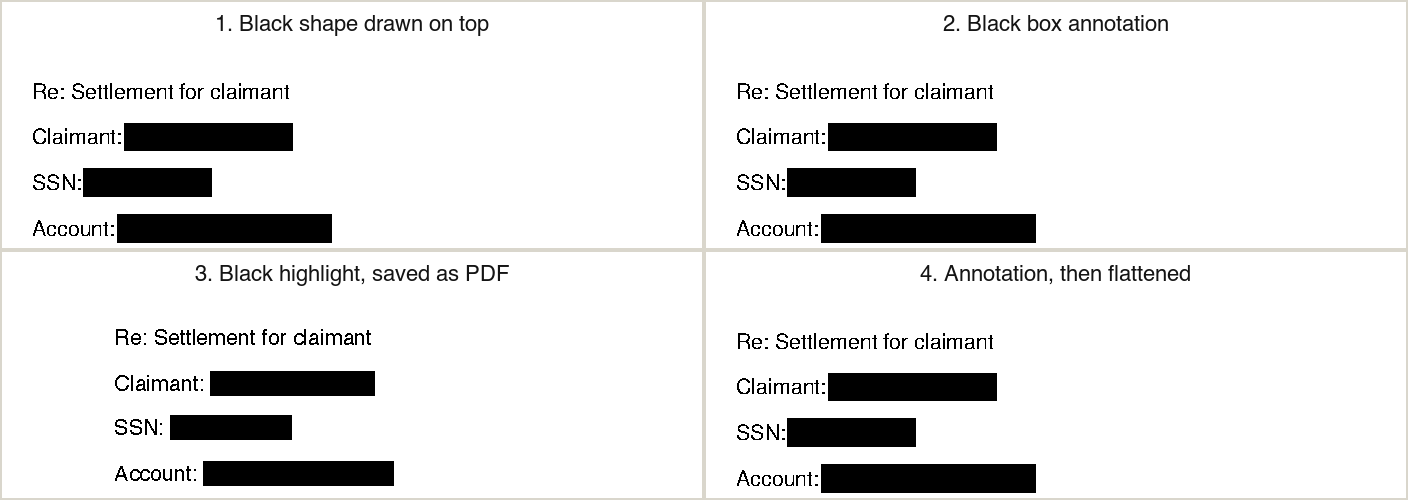
All four of these look identical, and every one of them still gives up the name, the SSN and the card number to a simple copy and paste.
| Method | Looks redacted? | Hidden text copyable? | Author name kept in file? |
|---|---|---|---|
| 1. Black rectangle drawn on the page (a shape tool) | Yes | 3 of 3 | Yes |
| 2. Black box added as a comment or annotation | Yes | 3 of 3 | Yes |
| 3. Text highlighted in black, then saved as PDF | Yes | 3 of 3 | n/a |
| 4. Method 1, then re-saved (“print to PDF”) | Yes | 3 of 3 | Yes |
| 5. Method 2, then flattened | Yes | 3 of 3 | Yes |
| 6. Every page turned into an image | Yes | 0 of 3 | No |
Two results are worth calling out:
- Flattening and re-saving don’t help. Flattening merges the box into the page, but the text was never in the box; it is still on the page underneath. Re-saving or “printing to PDF” copies both layers faithfully.
- Metadata survives. The author name stored in the file’s properties survived every method except the image conversion. (Method 3 started from a page with no author set, so it had none to keep.) If the author is the person you are protecting, the PDF names them anyway.
Want to see it for yourself? Download our black-box sample PDF, open it, select all and paste into a text editor.
What does work is removing the text itself. Real redaction tools delete the characters under each box (Acrobat Pro, Preview), or rebuild the page as an image so there are no characters left at all (method 6, and how our Redact PDF tool works).
Method 1: Redact a PDF free, in your browser
Our Redact PDF tool is free, needs no account, and runs on your device: the PDF is opened in your browser tab and is never uploaded.
Settlement summary
Claimant: Sarah Connor
Account: GB82 WEST 1234 5698
Signed by Kyle Reese on 3 March
-
Open Redact PDF and drop your file on the page.
-
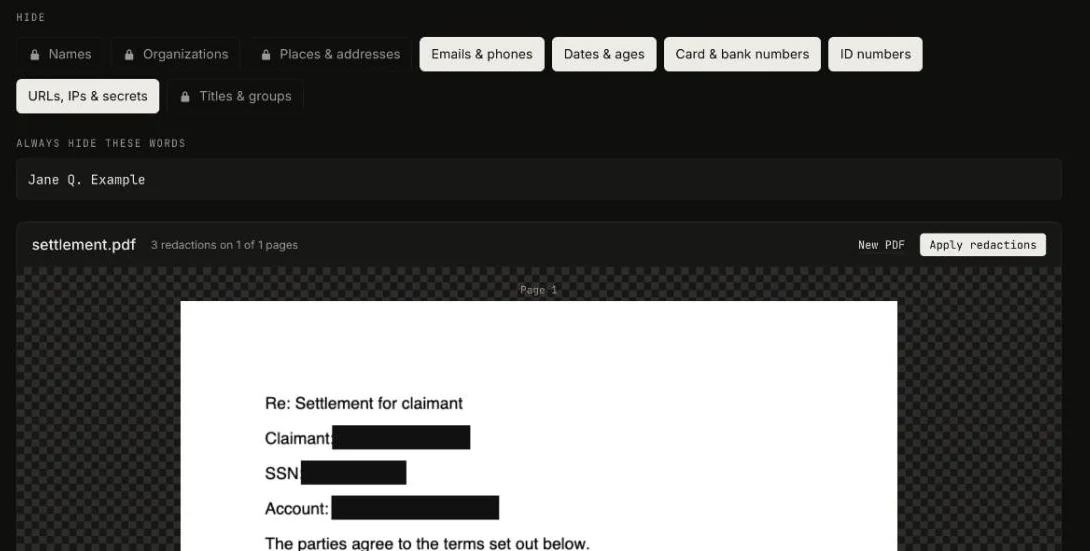
Check what it found. Emails, phone numbers, card and bank numbers, ID numbers, dates and URLs are boxed automatically. Turn on the optional AI model to find names, organizations and places too (English only). Click a box to un-redact it, or drag over anything else, such as a signature.
-
Select Apply redactions, then Download redacted PDF. Every page with a redaction is rebuilt as a 200 dpi image with the boxes burned in, so there is no text left under them. Pages you didn’t touch keep their selectable text. The download has no metadata: author, dates, attachments and scripts are stripped.
Before you save, the tool re-opens its own output and checks that none of the hidden values can be pulled out as text. You can run the same check on any PDF with our redaction checker.
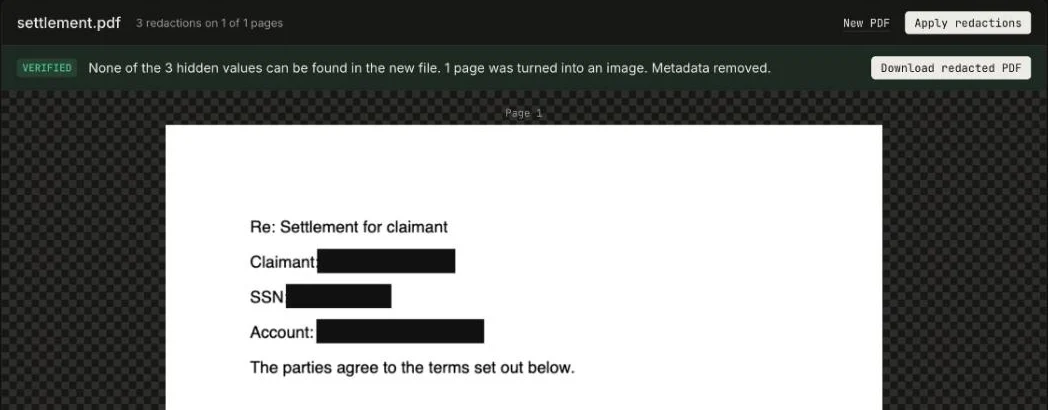
The trade-off: a page rebuilt as an image can no longer be searched or selected, and the file gets bigger. For a letter or a statement that’s usually fine. For a 300-page contract where only page 12 needs redacting, only page 12 changes.
Method 2: Redact in Adobe Acrobat Pro
Adobe’s redaction tool comes with Acrobat Pro and its higher tiers, not with Acrobat Standard or the free Reader app. As of October 2026, Adobe lists Acrobat Pro at US$19.99 a month on an annual plan. The steps, from Adobe’s help page:
- Open the PDF in Acrobat Pro and go to All tools › Redact a PDF.
- Choose Redact text and images, then drag over or double-click the content you want gone. To catch every mention of a name or number, use Find text and redact instead and search for it. Each area is marked with an outline, not yet removed.
- Select Apply, then Continue when Acrobat offers to sanitize the document and remove hidden information such as metadata and comments.
- Save under a new name, so you still have the original.
Marking is not redacting. Until you apply, the outlined text is still there, and a PDF saved at that point leaks just like a black box would.
Method 3: Redact with Preview on a Mac
Recent versions of macOS include a free redaction tool in Preview.
- Open the PDF in Preview and choose Tools › Redact. Confirm the warning that redacted content is removed permanently.
- Drag over the text or area to hide. It turns black.
- Save or close the document. According to Apple, the redaction becomes permanent once the document is closed.
Two caveats from Apple and from independent testing. Apple notes that table-of-contents entries linking to redacted text are not removed. And when The Eclectic Light Company tested the tool in 2020, text placed outside the visible page area survived; its author concluded Preview wasn’t fit for serious redaction work and recommended Acrobat’s sanitize step instead. Preview is fine for an everyday letter. For anything that matters, run the checks below before you send it. Our Preview redaction guide covers its limits in more detail.
If you have the original Word file
Microsoft Word has no redaction tool, so black highlighting in Word gives you method 3 from our test: it looks redacted and copies out in full. Our guide to redacting in Word covers the Windows and Mac steps in detail. If you have the editable original, the safest route follows the NSA’s 2005 guide, Redacting with Confidence: remove the text before it ever becomes a PDF.
- Work on a copy of the document.
- Delete each sensitive word and replace it with filler. The NSA guide suggests meaningless characters like XXXX so the layout holds; a fixed placeholder like [REDACTED] also hides how long the original was. Use Find and Replace to catch every occurrence of a name.
- Run File › Info › Check for Issues › Inspect Document and remove comments, tracked changes, document properties and hidden text.
- Save as PDF.
Deleted text can’t leak, because it isn’t there. The NSA guide also warns about the two traps from our test: boxes or highlighting laid over text, and metadata left in the file.
How to check that a PDF is really redacted
Do this on the exact file you are about to send, not on the copy you edited.
- Copy and paste. Open the PDF, press Ctrl+A (Cmd+A on a Mac), copy, and paste into a plain text editor like Notepad or TextEdit. If any hidden word shows up, the redaction failed.
- Search. Press Ctrl+F and search for a name or number you redacted. A match means it is still in the file.
- Check the properties. Open File › Properties (in Preview, Tools › Show Inspector) and look at the author, title and keywords.
- Use a checker. Drop the file on our free Unredact PDF checker. It shows any text sitting under a black box, and like everything on this site it runs in your browser.
One leak no checker catches: the size of the box. A short black bar after “Claimant:” says the name is short. Researchers at the University of Illinois showed in a 2023 study that even real redaction tools, Adobe’s included, can leave behind the exact width and position of the removed characters. In a typical PDF made from Word, that was enough to pick out one person from about 8,000 candidates. Rebuilding the page as an image removes those character positions, but the study found the box width alone still gives a lot away. Their advice: when the length of a name matters, redact the whole line or the words around it, not just the name.
Black boxes have leaked real secrets
This is not a hypothetical mistake. It has happened in some of the most closely read documents of the past twenty years.
- Paul Manafort’s court filing (January 2019). His lawyers’ filing had black bars over live text. Reporters copied and pasted the hidden passages and learned he was accused of sharing polling data with Konstantin Kilimnik.
- The TSA screening manual (2009). A 93-page airport screening procedures manual was posted on a federal contracting site with black boxes that could be removed or copied around. CBS News reported the leak in December 2009.
- The Epstein files (December 2025). After the US Justice Department began releasing files on December 19, readers found that some redactions could be highlighted, copied and pasted into a document, CBC reported. Not every file was affected.
The 2023 Illinois study found the pattern is common: in US court filings, inspector-general reports and FOIA releases, it found more than 6,000 redacted names that could simply be copied out from under their boxes.
What about scanned PDFs?
Scans leak too, just differently. A scanned page is a picture, and a black shape drawn over it is a separate object sitting on top. The full picture is still underneath, so anyone can delete the shape or export the image and see everything. That is how the TSA manual came apart.
Many scanners and apps also run text recognition (OCR) and add an invisible text layer so the PDF can be searched. If you can select a word on your scan, it has hidden text as well, and a drawn box leaks it exactly like method 1.
So treat a scan like any other PDF: use a real redaction tool, or one that rebuilds the page as a new image. Our Redact PDF tool finds nothing automatically on a scan without a text layer, but you can drag boxes over anything and they are burned into the rebuilt page.
Other places a name can hide
The page text is the obvious leak. These are the ones people miss:
- The file name. “Smith-settlement-final.pdf” redacts nothing.
- Bookmarks, form fields and comments. A bookmark titled with a name survives a redaction of the page it points to.
- Attachments. PDFs can carry whole files inside them, including the unredacted original.
- Earlier versions. Some editors save changes by appending them to the end of the file, and the earlier, unredacted version can still be inside. Always save the redacted copy as a new file.
Acrobat’s sanitize step is built for these. Our Redact PDF tool writes a brand-new file, so bookmarks, attachments and earlier versions don’t come along, but comments and form fields on pages you didn’t redact are kept, so check those. To see what else is stored inside a PDF, drop it on our PDF metadata remover.
Questions
How do I black out text in a PDF?
Use a redaction tool, not a drawing tool. Adobe Acrobat Pro’s Redact tool, the Redact tool in Preview on a Mac, and our free Redact PDF page all remove the text under the black box. A rectangle drawn with a shape or comment tool only covers it, and the text can still be copied.
How can I redact a PDF for free?
Drop the PDF on our Redact PDF page. It finds emails, phone, card and ID numbers, lets you drag over anything else, and rebuilds each redacted page as an image so the text is gone. It runs in your browser, so the file is never uploaded. On a Mac, Preview’s Redact tool is also free.
Why can’t I redact text in a PDF?
Usually because the app you are using has no redaction tool. Adobe’s redaction tool comes with Acrobat Pro, not the free Acrobat Reader, and browsers’ built-in PDF viewers can’t redact either. Use Preview on a Mac or a dedicated redaction tool instead of drawing a black shape.
How do I check that a PDF is properly redacted?
Open it, press Ctrl+A (Cmd+A on a Mac) to select all, copy, and paste into a plain text editor. If the hidden words appear, the redaction failed. Also search the PDF for a redacted word with Ctrl+F, and check File › Properties for an author name.